
Basic Customizing Guidelines
Here you are given a guide to all the Global Settings of the project. So by following these guides you can Make Necessary Changes in your project.

Colors & Fonts
Colors
The colours shown here are the main colour palette of the site.
Accent [ Primary ]
This color is the Accent [ Primary ] color of the site.
Accent-alt [ Secondary]
This color is the Accent-alt [ Secondary ] color of the site.
Strogest Text
This color is the Strogest Text color of the site. which is use in Hedings.
Strong Text
This color is the Strong Text [ Body text ] color of the site. which is use in Paragraph [ <p> ], Listing [ <li> ].
Medium Text
This color is the Medium Text color of the site. which is use in Sub headings, Captions ,Sub text.
Subtle-text [ Accent ]
This color is the Subtle-text [ Accent ] color of the site. which is use in somting highlight in the page
Subtle-Background
This Subtle-Background color is use for section’s background color.
Lighter-Background
This Lighter-Background color is use for also light section’s background color.
White
This color is White color of the site.
Buttons
Here are some examples of different types of default button designs.
Typography
Here are some examples of different types of default typography, such as paragraphs and headings from H1 to H6.
Font family is also mentioned here, and how to use it.
Paragraph Note
All headings are displayed here, with their design elements such as font size, font weight, line height, and more managed through custom styling.
Font Family Note
There are 3 ways to set font family.
1️⃣ From backend
- Font family can be set from backend when using “Google Font Family”.
2️⃣ By using Kadence Custom Fonts plugin [ ✴ Recommended ✴ ]
- You can add custom fonts using this plugin.
- The advantage of this is that you can select this font directly while designing the page and can also use it in global settings.
- Here is the video link on how to set font family using plugin. [ https://www.youtube.com/watch?v=BOV9ddD4hhU ]
- If by chance the font family is not getting applied by the plugin then first of all check whether the SSL settings of the site are correct or not. Whether the site is with HTTPS or not.
3️⃣ From CSS file
- Which we generally add in our project like converting the font family file to @font-face [ https://transfonter.org/ ] and using it
Note 🙄 :- Here it is important to keep in mind that wherever colors have to be given, they have to be given from the backend.
Note 🙄 :- If the client is concerned that the project design should be done only from the backend, then custom CSS should not be considered. Every design style has to be managed from the backend.
H1 Use in main heading of page
H2 Use in section heading
H3 Use in section’s inner heading
H4 Use in Sub Heading
H5 Use in Sub Heading
H6 Use in Sub Heading
General
Layout
In this layout generally we have container settings, and we can also manage left-right and top-bottom space.
1️⃣ Content Max Width
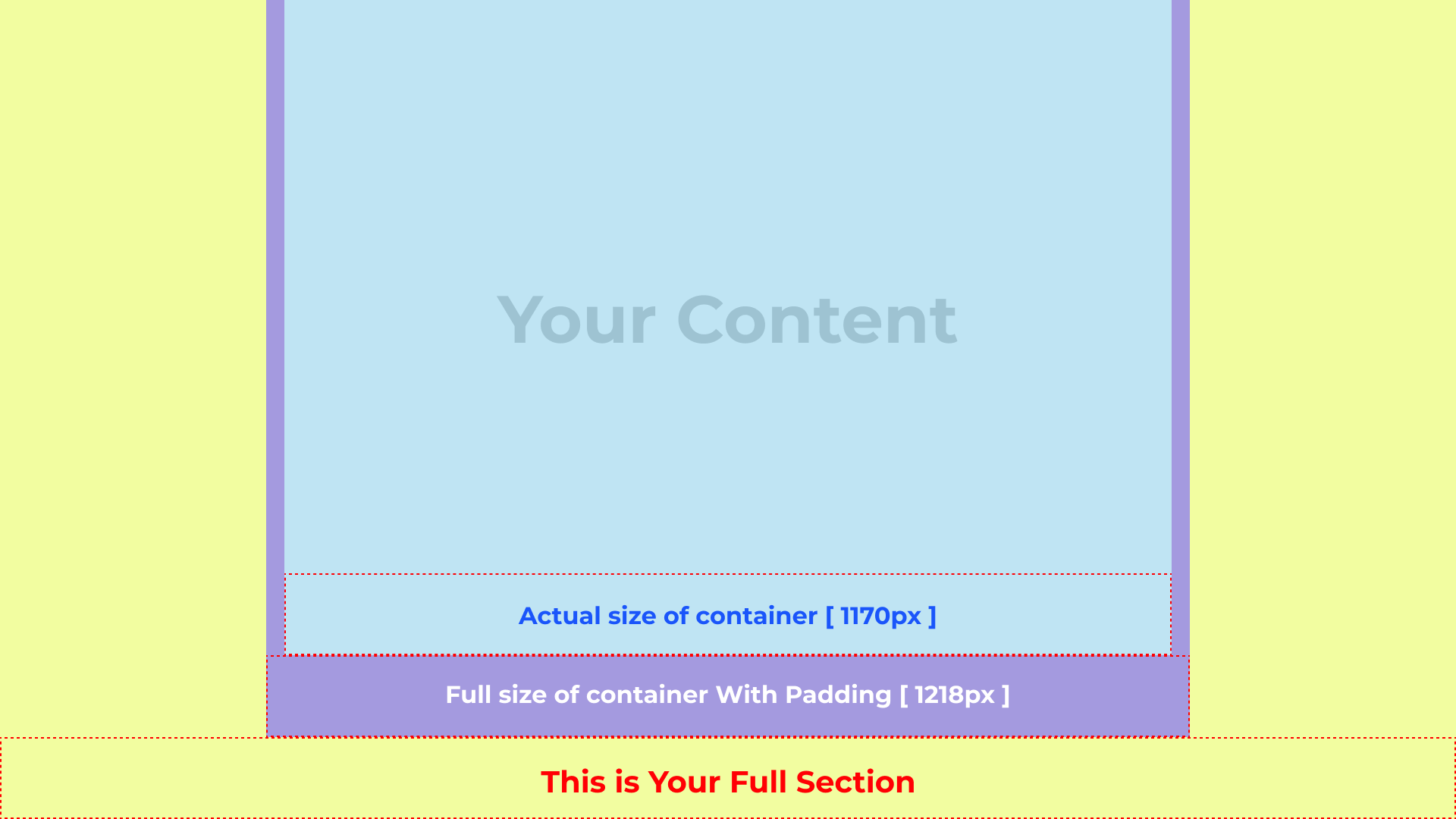
- We can set the Max-Width of the section’s container here in “Content Max Width”.
- The default maximum width for the container has been set to 1218px [ Content Max Width ].
- We have set a default padding of 1.5rem (24px) on the left & right sides of the container[ Content Left/Right Edge Spacing ].
- Therefore, the Actual size of our container will be 1170px.
2️⃣ Content Left/Right Edge Spacing
- We can set the Left-Right Padding of the container.